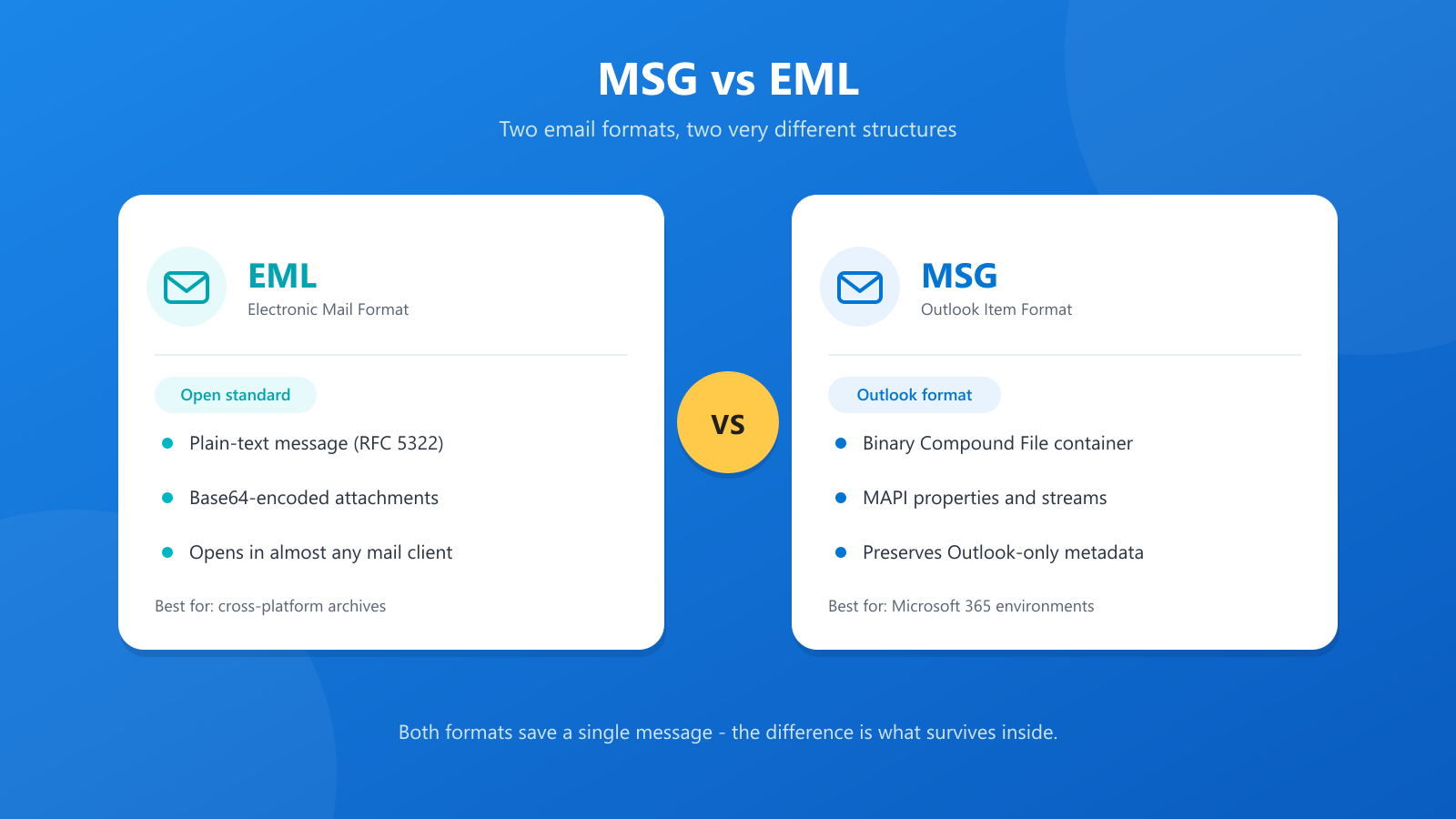
Two formats, one job — at a glance
If you work in IT, legal and compliance, or simply archive a lot of email, you will run into both formats. They both save a single message to disk, but underneath they are very different animals.
| EML | MSG | |
|---|---|---|
| Full name | Electronic Mail Format | Outlook Item Format |
| Standard | Open (RFC 5322 / MIME) | Proprietary (Microsoft) |
| Structure | Plain text with encoded parts | Binary Compound File (CFB) |
| Stores | A single email message | Email, contacts, calendar, tasks |
| Best for | Cross-platform, long-term archives | Preserving Outlook-specific data |
What is an EML file?
EML is the open, text-based format behind ordinary internet email. It follows the MIME standard (originally RFC 822, later RFC 5322), which means an EML file contains the raw message — headers, body, and attachments — exactly as it would travel across the internet.
Key characteristics:
- Universal compatibility. Outlook, Thunderbird, Apple Mail, and most webmail services can open EML files natively.
- Text-based. Because it is plain text, you can open an EML file in Notepad and read the raw headers and HTML source.
- Self-contained. Attachments and embedded images are encoded inside the file using Base64.
What is an MSG file?
MSG is Microsoft's proprietary format for a single Outlook item. Rather than plain text, an MSG file is a binary Compound File Binary (CFB) container — a miniature file system holding Outlook's MAPI properties across multiple internal streams.
Key characteristics:
- Outlook-centric. It is designed to capture an item exactly as Outlook sees it.
- Complete fidelity. Outlook-only properties such as follow-up flags, categories, and voting buttons survive in the file.
- More than email. The same .msg extension is used for Outlook contacts, calendar appointments, and tasks.
Which format should you use?
There is no universally "better" format — it depends on your environment.
Choose EML when:
- Cross-platform access matters. EML opens on Windows, macOS, Linux, and mobile mail clients, and can be imported into almost any webmail service.
- You are archiving for the long term. As an open, text-based standard, EML is easy to parse and unlikely to become unreadable.
- You use non-Microsoft tools. Thunderbird, Apple Mail, and Gmail-style platforms are all happiest with EML.
Choose MSG when:
- You live in a Microsoft environment. If everyone uses Outlook and Exchange, MSG is the natural native format.
- Fidelity is critical. Legal and compliance teams often prefer MSG because it preserves Outlook metadata that conversions can strip or mistranslate.
- You are archiving calendars or contacts. EML only handles email messages, whereas MSG handles the full range of Outlook items.
Opening EML files on Windows today
EML is the easy one. Outlook, Thunderbird, eM Client, and most webmail services open EML files directly, and you can drag an EML file into an open message list to import it. For a quick look at the raw content, Notepad works too.
One note that trips people up: the old Windows Mail app has been retired in favour of the new Outlook for Windows. If you relied on Mail to preview .eml files, install the new Outlook or use a third-party client.
Opening MSG files on Windows without Outlook
MSG is where things get awkward. Windows has no built-in MSG handler, and without Outlook installed the "How do you want to open this file?" dialog is the usual result.
For anyone who needs to read MSG files rather than manage a mailbox, a dedicated viewer is the practical answer. OpenMSG parses the binary MSG structure directly, renders the HTML body and inline images, and lists every attachment with its name, size, and type — all without Outlook or a Microsoft 365 licence. It is free for personal use from the Microsoft Store, and it is read-only, so the original file is never modified.
For a deeper look at what is inside an MSG file, see Understanding the MSG File Format.
Converting between EML and MSG
The simplest conversion route runs through Outlook: open the EML file in Outlook, then use File → Save As and choose the MSG format. The reverse works the same way.
A few cautions:
- Conversion is not lossless in either direction. Outlook-only properties can be dropped when saving as EML, and non-Microsoft tooling can misread MSG metadata.
- Attachments are usually preserved, but always spot-check a sample before bulk converting an archive.
- OpenMSG itself does not convert between formats — it is deliberately a read-only viewer.
The bottom line
EML and MSG solve the same problem in different ways. EML is the open, portable standard; MSG is the high-fidelity Microsoft format. If your archive needs to outlive a particular mail client, lean towards EML. If you work inside Outlook and need every header and flag preserved, MSG is the one — just make sure you have a viewer that opens it without dragging Outlook along for the ride.