What is an MSG file?
An MSG file is a single Microsoft Outlook item saved to disk. Most of the time it is an email, but the same format is also used for contacts, calendar appointments, and tasks.
For an email, the file carries everything: subject line, sender, To/CC/BCC recipients, sent and received dates, the full HTML body with inline images, and every attachment exactly as it was received. That completeness is why MSG files are the standard currency for archiving a message, sharing it with a colleague, or handing an email over as evidence.
Why Windows will not open it
Despite being a Microsoft format, Windows has never shipped with an MSG file handler. A .msg file is a proprietary Compound File Binary container — the same family of format as legacy .doc and .xls files — and it takes specialised parsing to read.
Without Outlook installed, double-clicking an MSG file usually opens the "How do you want to open this file?" dialog with no useful suggestions. Windows simply has nothing registered for the extension.
That leaves two realistic options:
- Install Microsoft Outlook, or
- Install a dedicated MSG viewer.
Why Outlook is usually overkill
Outlook is a full email client, not a file viewer. Installing it just to read an exported message means:
- A full client for a simple task. Outlook is built to send, receive, and manage mail — not to open one archived file.
- Licensing that scales with staff. A personal copy comes with a Microsoft 365 plan, a perpetual Office licence, or the free new Outlook for Windows. In business and enterprise environments, Outlook requires paid per-user licensing, and multi-session hosts such as RDSH and AVD specifically require Microsoft 365 Apps for Enterprise.
- A large installation. The Office suite is well over 500 MB, against roughly 15 MB for a purpose-built viewer.
- Account configuration. Outlook wants a mail profile before it will open, even if you only need to read one file.
- Telemetry and cloud connectivity. Microsoft's email clients collect diagnostic and usage data and expect a signed-in account; a signed-in Outlook profile can also sync mail and settings to Microsoft 365 — something review teams and privacy-conscious users would rather avoid.
If all you need to do is read an MSG file, extract an attachment, or print the email to PDF, a focused viewer is faster, smaller, and easier to reason about.
The lightweight alternative: OpenMSG
OpenMSG is a standalone MSG viewer for Windows 10 and Windows 11. It parses the MSG format itself, so neither Outlook nor Microsoft 365 is required at any point. Personal use is free from the Microsoft Store, and teams can licence the Enterprise build from $450 per year.
What you get:
- No Outlook required — fully standalone, with no mailbox or account setup.
- Instant opening — designed for large messages, up to 3 GB by default, including heavy attachments.
- Complete rendering — sender and recipients, subject, date, and the full HTML body with inline images.
- Attachment handling — see every file's name, type, and size; save one file or save them all.
- Print to PDF — turn any email into a shareable PDF without a virtual printer.
- Local processing — MSG content never leaves your device.
How to install OpenMSG
- Open the Microsoft Store on Windows 10 (version 1809 or later) or Windows 11.
- Search for OpenMSG, or open the Store listing.
- Click Get and wait a few seconds.
There is no account, no credit card, and no administrator rights requirement for the personal edition. The app is code-signed and certified for distribution through the Microsoft Store.
Set OpenMSG as your default MSG viewer
To make .msg files open automatically from now on:
- Right-click any .msg file in File Explorer.
- Choose Open with → Choose another app.
- Select OpenMSG from the list.
- Tick Always use this app to open .msg files.
From then on, double-clicking an MSG file opens OpenMSG directly. If the option does not appear, or a Windows update resets the association, see Fix MSG File Association on Windows 11.
What you see when you open a file
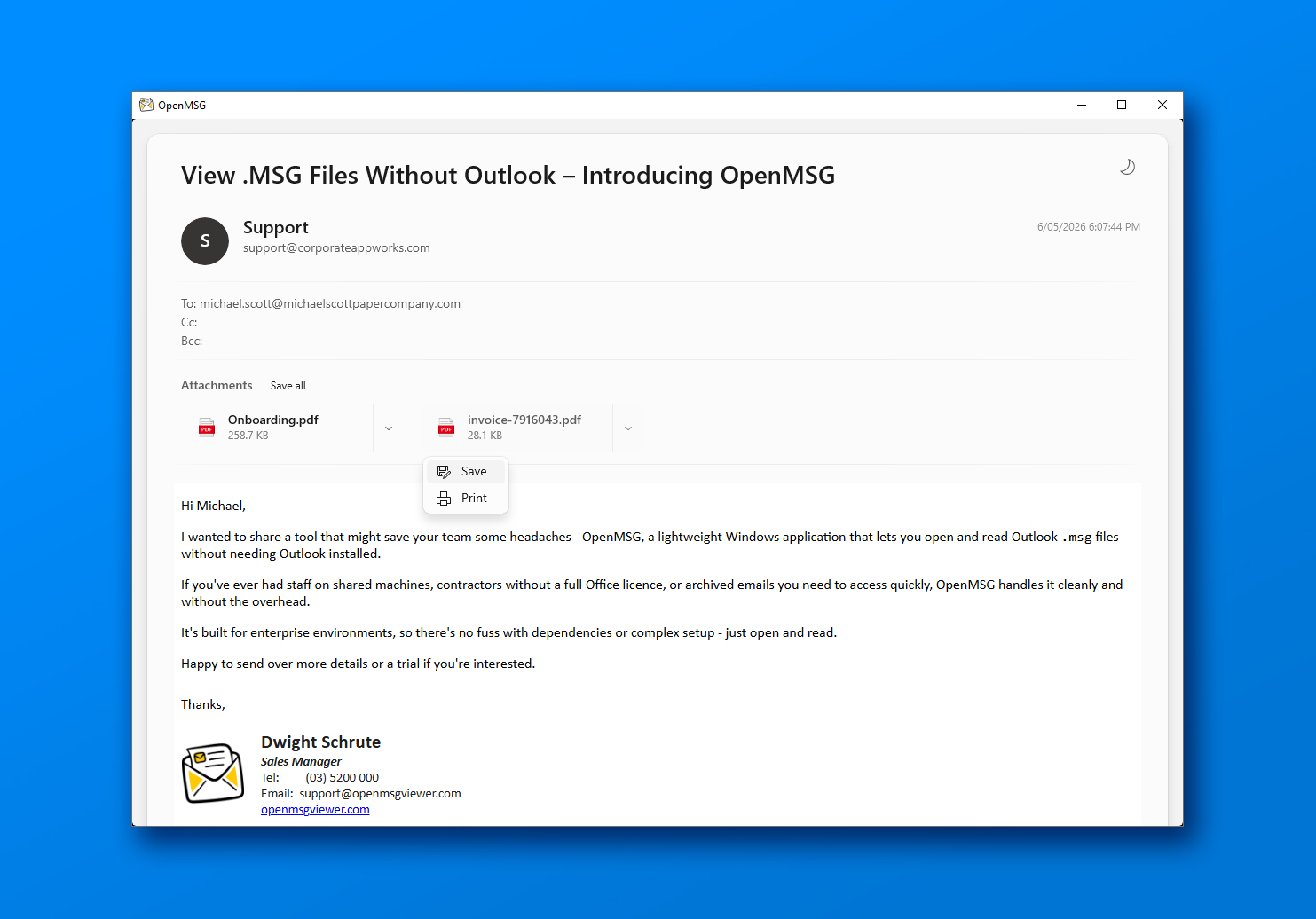
OpenMSG opens straight into the message, with no splash screen or progress bar:
- Header panel — sender name and address, subject, sent date, and To, CC, and BCC recipients.
- HTML body — the formatted email with its layout, styling, and embedded images intact. Emails without an HTML body are shown in a clean plain-text view.
- Attachment panel — every attachment listed with its file-type icon, name, and size. Open a file in its default app or save it with the original filename pre-filled.
- Toolbar — print the email to PDF, toggle light and dark themes, and open the About menu.
Common issues and fixes
Double-clicking still does nothing
The association has not been set. Follow the default-app steps above. If OpenMSG does not appear in the "Open with" list, launch the app once from the Start menu, then try again.
An attachment is blocked or shows a warning
This is a security feature, not a fault. By default, attachments whose extension is outside the safe list trigger a confirmation prompt, and files whose contents do not match their extension are blocked outright. The default safe list covers PDFs, Office documents, images, text, CSV, RTF, and nested MSG files; IT administrators can customise it in managed deployments.
External images are missing from the email body
By default OpenMSG blocks images and other assets hosted on third-party servers. This stops tracking pixels and remote content from loading when you open a message. Click Show content if you trust the sender and want to reveal external images for that message.
The email body looks cut off
Very large bodies can exceed the renderer's height limit. OpenMSG shows a warning bar with an Open in Browser button that renders the message in a full browser window.
The file will not open at all
A few common causes: the file is still a OneDrive or SharePoint placeholder (right-click it and choose Always keep on this device), the download was incomplete, or the file is not really an MSG — forwarders sometimes rename EML or RTF files. Ask the sender to re-export the email from Outlook as a .msg file.
Is OpenMSG private?
Yes. MSG files are parsed and rendered entirely on your device. Email content, attachments, and message metadata are never uploaded anywhere.
The consumer app sends limited, pseudonymous usage analytics and crash reports so the product can be improved — never email content or attachment contents. Both can be switched off in the app's About menu, and they are permanently disabled in the Enterprise and Evaluation builds. For the full detail, see the privacy policy.
Frequently asked questions
Can OpenMSG edit MSG files?
No. OpenMSG is read-only by design. It never modifies the original MSG file or writes changes back to it — which is exactly what you want when reviewing archived or evidential email.
Does OpenMSG work offline?
Yes. Viewing an MSG file requires no internet connection and no account. The only optional network activity in the consumer build is the telemetry described above, which can be disabled.
Can I open MSG files on macOS?
No. OpenMSG is a Windows application, tested on Windows 10 (1809+) and Windows 11, x64. On macOS, Outlook for Mac is the usual way to open an MSG file.
The bottom line
Opening MSG files on Windows does not require an expensive subscription or a bloated Office installation. OpenMSG gives you everything you need to read, search, and extract from MSG files — fast and private. Install it from the Microsoft Store and never fight with the "How do you want to open this file?" dialog again.